Copy documents to a collection on another server
Use two separately named connections. In this example we copied six synthetic orders from keplergrid_compare_lab.orders on Practice source to keplergrid_copy_lab.orders_copy on Practice destination. The two connections point to separate MongoDB instances. To reproduce the test, use the six practice orders.
- On the source, right-click
ordersand choose Export documents… → Entire collection. Save the Canonical Extended JSON Lines file. Current query page saves only the loaded page. - Connect to the destination in Read & write mode and create an empty regular collection named
orders_copy. Right-click it and choose Import documents…. - Select the JSON Lines file. Under Ready to import, check the connection, database, collection, and document count. The screenshot shows the separate duplicate test. Choose Import 6 documents once the target matches your intended copy.
- After the completion message, clear the filter on the destination collection and count the documents. With this fixture, expect six. Compare a known ID and the Date, ObjectId, and Decimal128 fields in Extended JSON.
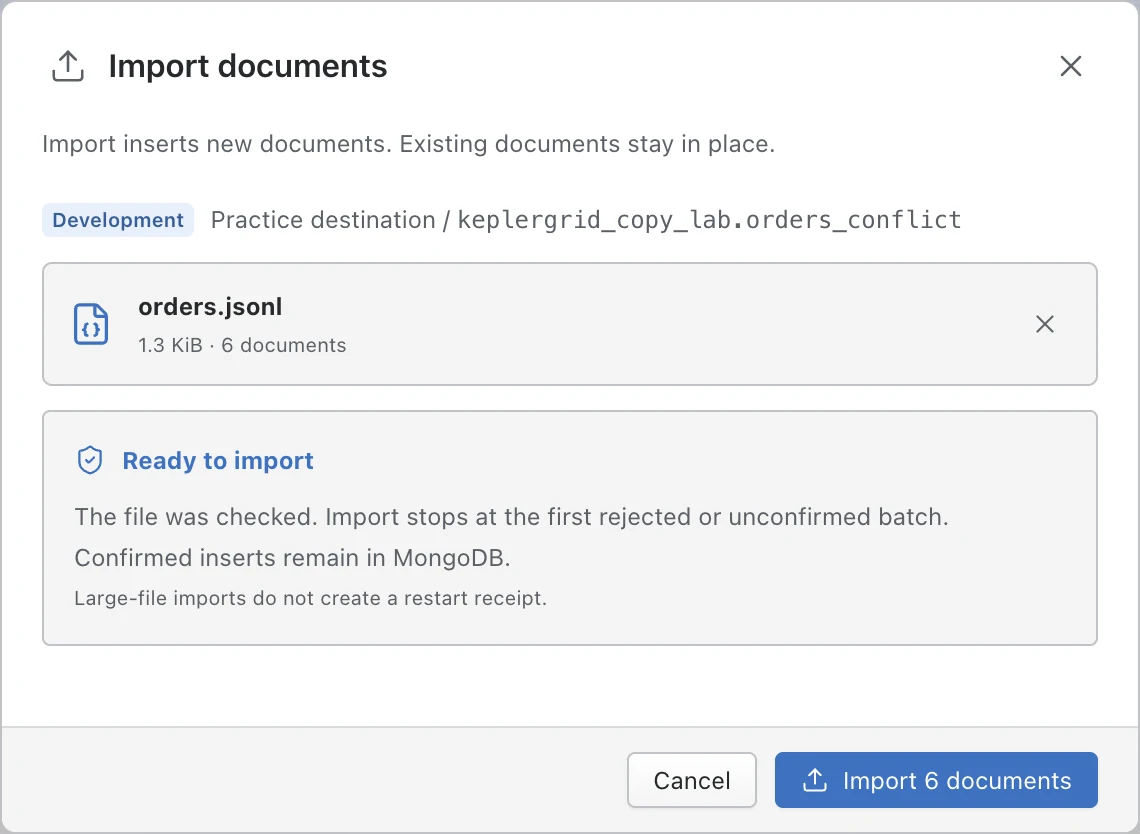
All six destination documents matched their source BSON values and original IDs. JSON Lines copies documents. Recreate any secondary indexes and collection validation rules separately. The destination had only its default _id index after the copy. For a deployment backup, use backup and restore tooling.
For the duplicate test, we created orders_conflict with a different document using the ID on source line 2. One earlier row was inserted, line 2 was rejected, and the last four rows were left unsubmitted. The original destination document retained its value.
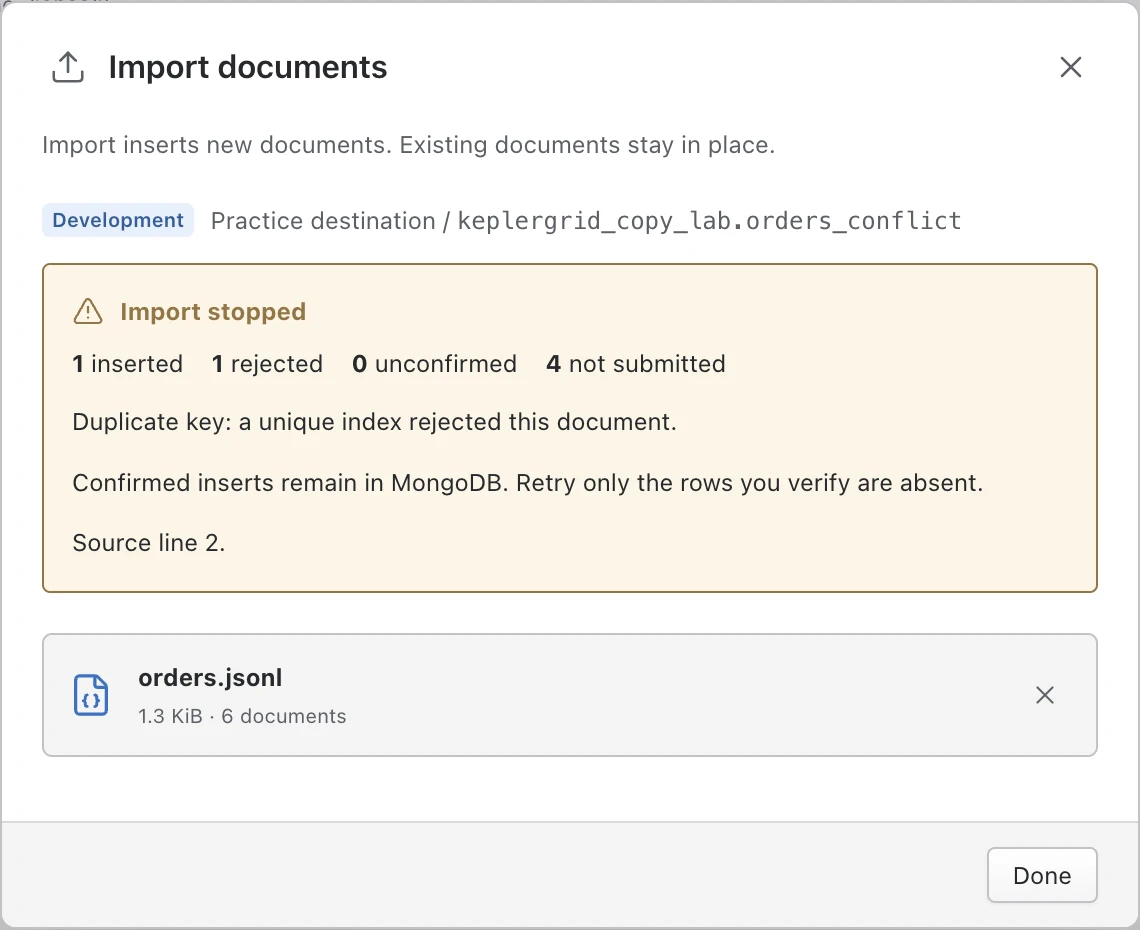
If the receipt is unavailable, use Check transfer receipt and read back the affected documents before retrying. See how to continue after a stopped import.
Import the JSON Lines export
Start with the .jsonl file from Export documents… → Entire collection. A Canonical Extended JSON Lines export has one document per line and carries MongoDB type information and the original _id values.
- Connect to the destination in Read & write mode. Streaming JSON Lines import requires MongoDB 6.0 or newer, an existing regular collection, and permission to inspect that collection and insert documents. To copy into an empty collection, right-click the destination database and choose Create collection…. For example, create
orders_copy. - Right-click
orders_copyand choose Import documents…. Confirm the connection, database, and collection in the dialog. - Drop in the
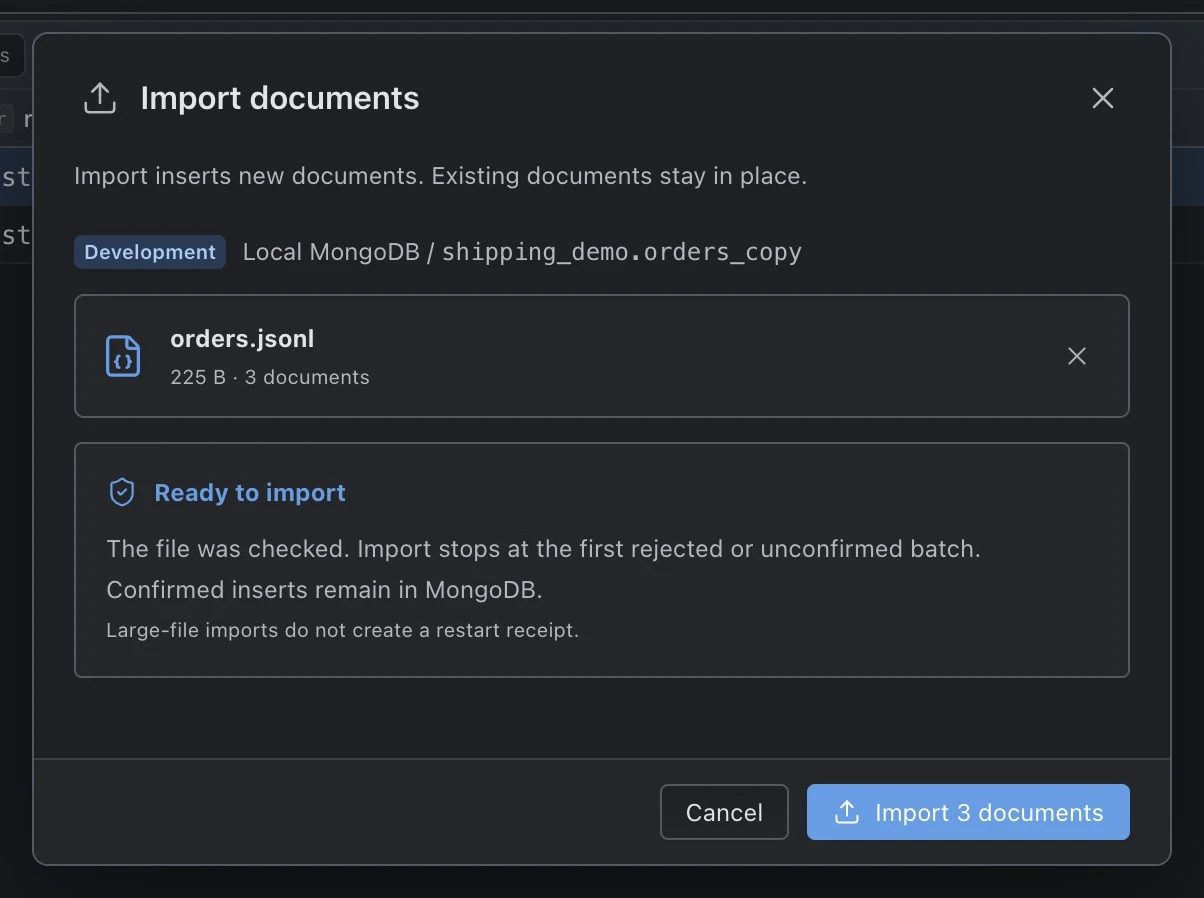
.jsonlfile or browse for it. Leave Keep an encrypted import receipt after restart clear to use the streaming importer. - Wait for Ready to import. File checking has made no writes. Review the filename, document count, and destination, then click Import with the displayed count.
- Check the completion message and its destination. If the import stops, use the results panel to see which rows were inserted, rejected, unconfirmed, or never submitted.
See what happens with duplicate IDs
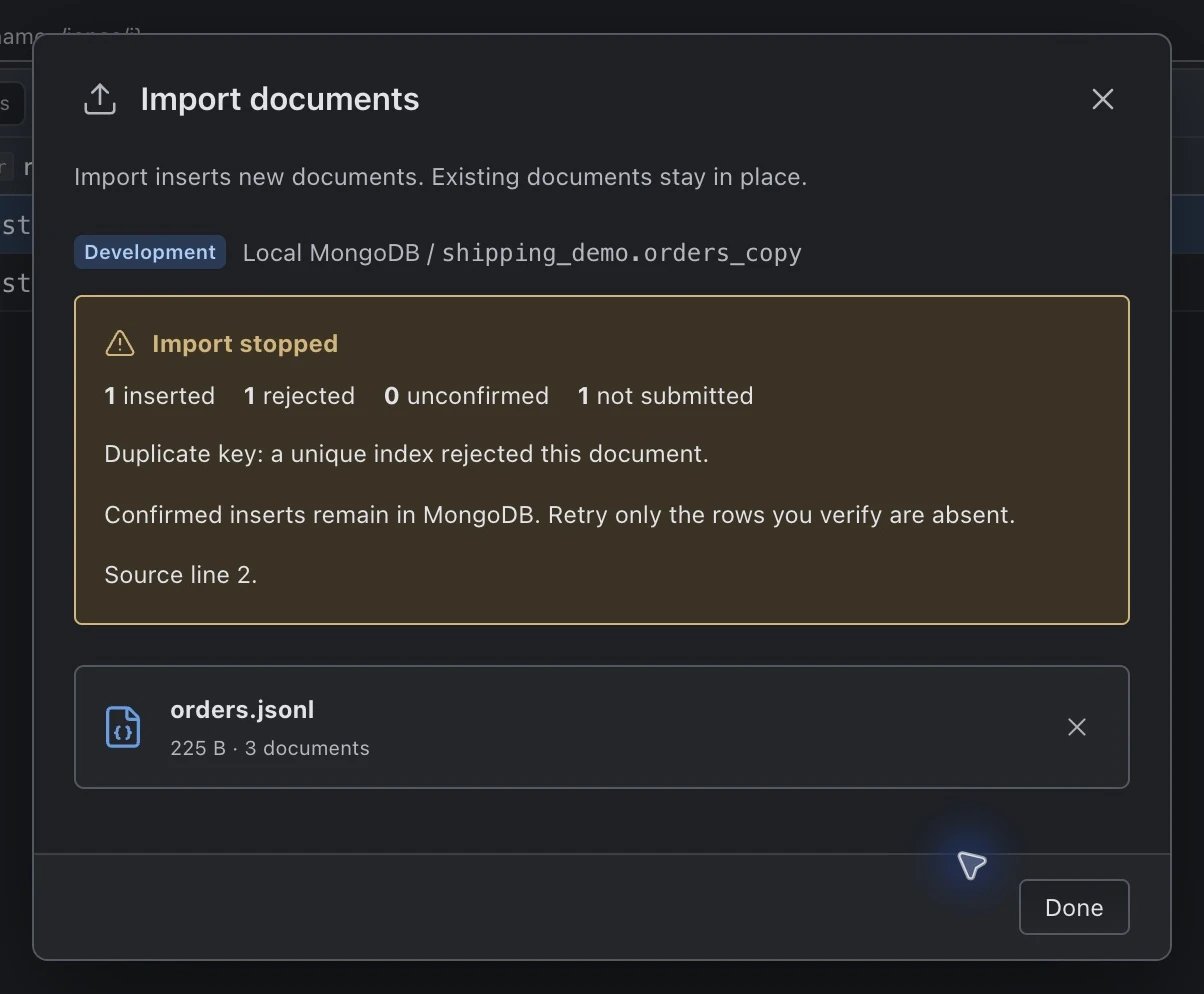
KeplerGrid submits the import as ordered inserts. MongoDB rejects a row if its _id already exists in the destination. The earlier successful inserts remain, and later rows are left unsubmitted. The same rule applies when two rows in the file use the same ID.
Suppose the destination already contains existing and you import these three lines.
{"_id":"prefix","n":1}
{"_id":"existing","n":2}
{"_id":"suffix","n":3}- 1 inserted.
prefixwas added. - 1 rejected. MongoDB rejected
existing. The destination’s original document stays as it was. - 1 not submitted.
suffixcomes after the rejected row.
The Import stopped result shows the counts and the source line when MongoDB identifies it. A file can pass review and still hit a duplicate during import.
Continue after a stopped import
For a separate copy, import the original file into a new empty collection. For an import you want to finish in the same destination, first check the affected IDs there. Keep only rows you have verified are absent in a new JSON Lines file, then review that file and import it. In the example, that can be a file containing only suffix.
Treat unconfirmed separately from not submitted. An unconfirmed write may have reached MongoDB. Read back those IDs before retrying. Reimporting the original file after a partial success can stop again on a row the first run inserted.
Read the full-collection export guide or return to the import and export overview.
Find MongoDB duplicates before creating a unique index
For a spreadsheet file, map CSV columns to BSON types. See how to test MongoDB schema validation when a collection requires particular fields or types.