Set up access in Atlas
Open your cluster in Atlas. This walkthrough uses a cluster reachable from your computer over its public endpoint.
- Add your current public IP address to the project’s IP Access List. If you connect over a VPN, use its outbound IP address. Keep the entry scoped to the address you use.
- Use an Atlas database user with read access to the database you want to open. Atlas account credentials are for the Atlas console. The database connection uses the database user’s credentials.
- On the cluster, select Connect → Drivers and copy the connection string. It usually begins with
mongodb+srv://. Keep the hostname and options generated by Atlas.
Open and test the Atlas connection
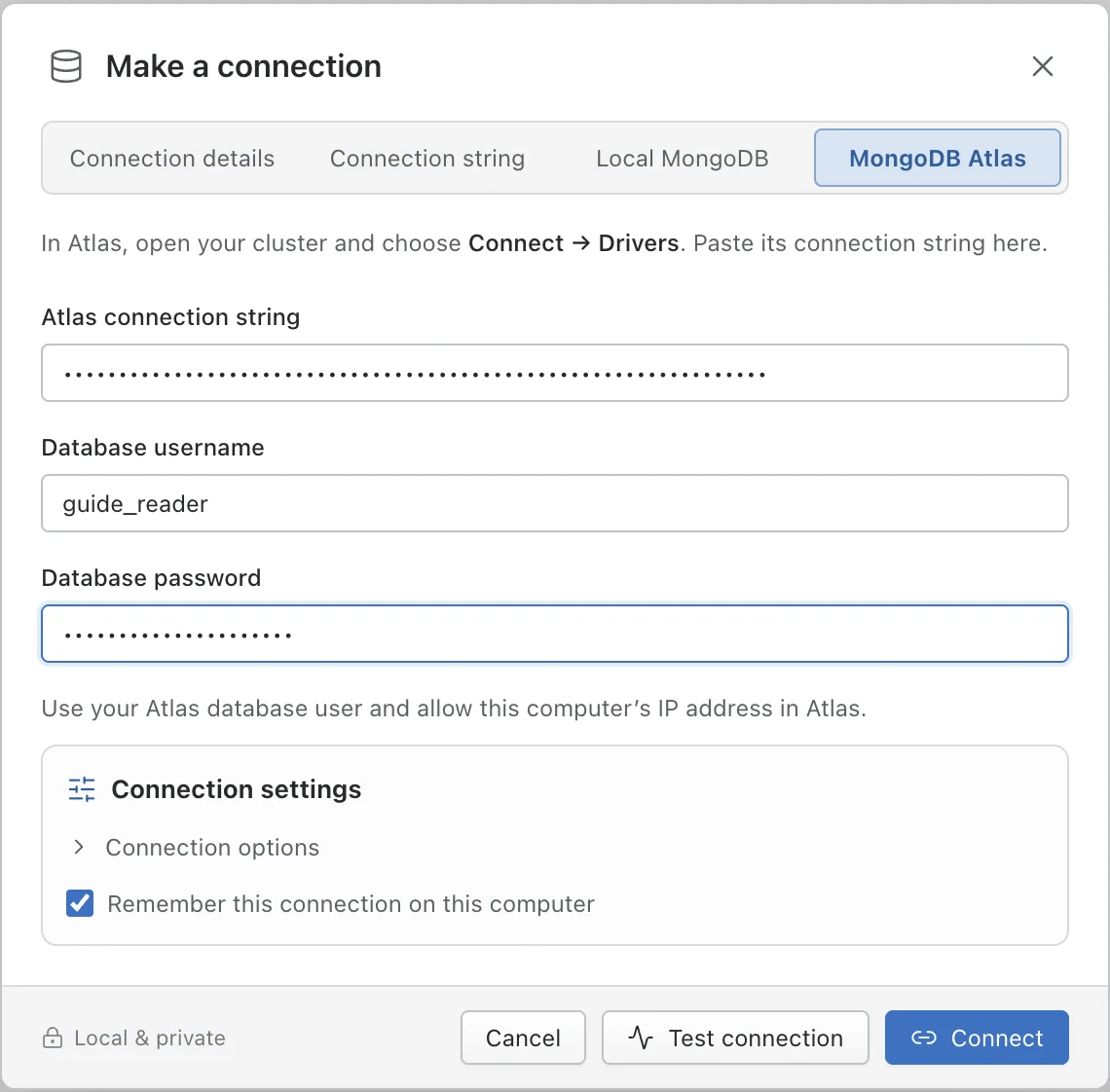
- In the desktop app, choose File → New Connection…, then MongoDB Atlas.
- Paste the string into Atlas connection string. If the URI still has recognized username or password placeholders, the corresponding database credential fields appear. Enter the raw values there. KeplerGrid encodes those values for the URI.
- Open Connection options and set Connection access to Read only. Clear Remember this connection on this computer if you only want it for this session.
- Select Test connection. When it shows Connection test passed, select Connect to open the workspace.
The SRV URI lets the MongoDB driver discover the cluster hosts through DNS and enables TLS by default. If DNS or MongoDB connection fails, check the hostname, cluster status and IP access list. For an Authentication failure, verify the database user and password. Use the authentication troubleshooting guide to narrow down the cause.
Run a read-only query
Expand a database and select a collection your user can read. Enter {} in Filter and run the query to load a page of documents. With the Atlas sample data loaded, you can open sample_mflix.movies and try this filter.
{ "title": "The Great Train Robbery" }If the connection test passed but opening the collection returns a permission error, check that the database user has read access to that collection. The test checks the connection. MongoDB checks collection permissions when you query it.
Try more MongoDB query filters or connect to a replica set over SSH.
If the test fails before authentication, check MongoDB DNS and TLS.