Set up replica set discovery
- Choose File → New Connection… and select Connection details. Under Server, choose Replica set and Discover replica set.
- Enter MongoDB host and port pairs as seen from the SSH server, such as
mongo-a.example.comand27017. Use Add member to enter another seed if available. Leave Replica set name blank to discover it or enter the exact name to verify the intended set. - Under Authentication, enter your MongoDB credentials if required. Use the database where the MongoDB user was created as the Authentication database. It defaults to
admin. - Under SSH, enable SSH tunnel. Enter the bastion host, port, and SSH username. Choose your SSH private key and enter its passphrase if it has one.
- In Options, keep Read preference on Primary. Select Require TLS if your MongoDB deployment requires it. Start with Read only when you only need to inspect data.
- Click Test connection. The test checks the SSH tunnel and MongoDB route, and reports the replica set name when discovery succeeds. It leaves your saved connections alone. Click Connect to open the connection.
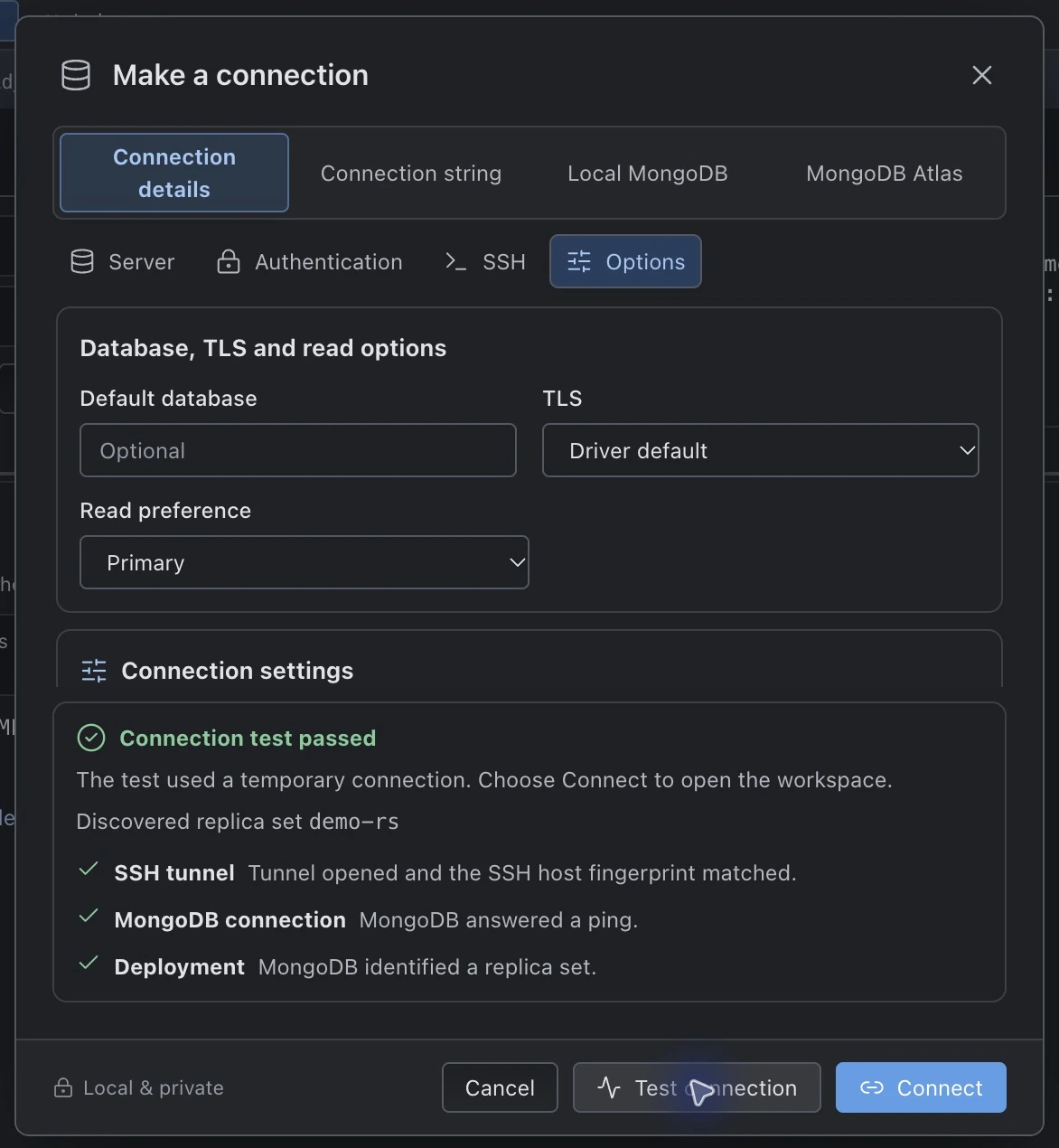
demo-rs.Verify the SSH server fingerprint
Your private key authenticates you to the bastion. The SSH server fingerprint verifies the bastion’s identity. Leave the fingerprint blank to let KeplerGrid look for a trusted OpenSSH host key for the entered host and port. When prompted, choose a verified saved key or enter the verified SHA256: fingerprint supplied by your administrator.
KeplerGrid checks supported entries in ~/.ssh/known_hosts. If your normal SSH command uses an alias or custom known-hosts file, check the underlying host and port. Verify unexpected fingerprint changes with your administrator.
Verify the current primary
Right-click the connected server and choose Server health. With Primary read preference, a fresh reading can show Replica set primary, the set name, and the member address. Refresh after an election. KeplerGrid can follow a new primary using the same connection profile. Reads and writes can be interrupted during the election. Read back any write with an unknown outcome before retrying.
If Server health shows Topology unavailable, use db.hello() through an authorized mongosh connection. Check setName, primary and hosts. isWritablePrimary identifies whether the member that answered is the primary of that replica set.
Connect directly to one member pins the connection to a single host. Use that mode for inspecting a specific member. Choose Discover replica set for automatic primary selection.
Troubleshoot the connection
Start with Test connection and look at the last check that passed.
The SSH tunnel fails
Check VPN access, the bastion hostname and port, your SSH username, key, and passphrase. If the fingerprint is missing or different, verify the bastion’s identity before updating the pin.
SSH passes and MongoDB times out
Check that the bastion can resolve and reach the addresses that MongoDB advertises, including the current primary. A seed alias can work while a discovered member address fails. Check internal DNS, firewall rules and SSH forwarding permissions. With Primary selected, confirm that the set has elected a reachable primary. For MongoDB host fields, localhost refers to the bastion.
MongoDB authentication or TLS fails
Check the MongoDB username, password, authentication database and mechanism. For TLS, check certificate trust and confirm that the certificate covers the hostnames advertised by the replica set.
The deployment or set name is wrong
Check the exact set name and confirm your seeds belong to it. A mongos endpoint uses Sharded cluster. If the set is between primaries, try again after it elects one.
See the getting-started connection steps or inspect an aggregation Explain plan after connecting.
Connect to MongoDB Atlas, diagnose authentication failures, or check collection access.