Save the stages to a JSON file
In the desktop app, choose Load sample data, open orders, and select Aggregation → JSON. Paste this pipeline and choose Run pipeline. It returns three sample orders.
[
  { "$limit": 3 }
]
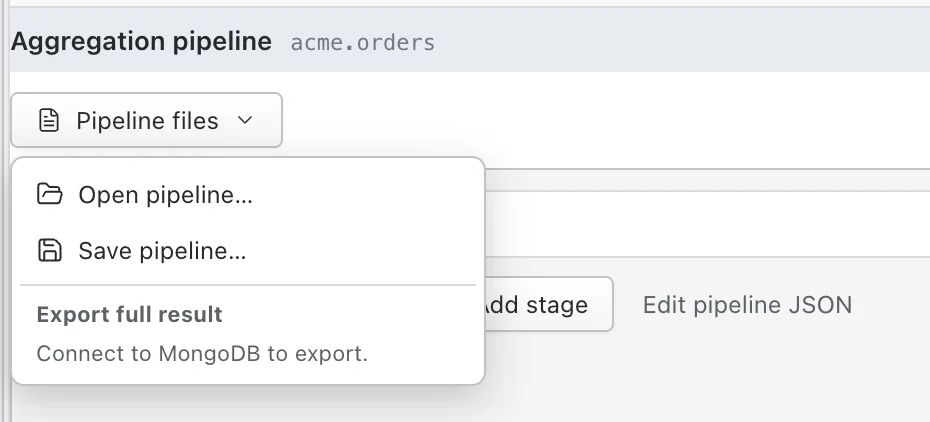
Choose Pipeline files → Save pipeline… and save it as orders.pipeline.json in a folder you can find again. KeplerGrid shows Saved orders.pipeline.json.
Open the saved file in a text editor if you want to inspect it. It contains the JSON array of stages. To save the returned rows instead, choose Export full result.
Open the saved pipeline without running it
For a quick check, change the row limit from 3 to 1 in the editor. Then choose Pipeline files → Open pipeline… and select orders.pipeline.json.
When the file differs from the pipeline in the editor, choose Replace pipeline to load the saved stages or Keep current pipeline to leave the editor as it is. KeplerGrid shows Opened orders.pipeline.json. Run the pipeline when ready. when it loads the file.
Confirm the active collection, then run
Check the active connection in the database browser and the database and collection shown above the pipeline. On a real connection, the same collection name can exist on several servers. To run on a different collection, switch to it and open the pipeline there.
Confirm the reopened stage again reads { "$limit": 3 }. Choose Run pipeline to return three rows in the sample workspace. If you need a repeatable choice of which rows are returned, put a $sort before the limit.
Use a UTF-8 .json file up to 256 KiB that contains a JSON array of stages. Review the stages and any filter values before sharing the file. Values you typed into those stages are included.
Try the same workflow with the orders-by-day example, or inspect each stage in the opened pipeline before running it.