Run your first query with a read-only connection
If your administrator already gave you a read-only account, use it here. For a local test account, follow the disposable setup below and return to these steps.
- Open File → New Connection and enter the approved server address and authentication settings. If you have a URI, use the Connection string tab and check that
authSourcenames the database where the user was created. - Open Options, set Connection access to Read only, and choose Test connection. A successful connection confirms connectivity. The next step verifies that the account can read the intended collection.
- Connect, open the collection, and confirm Read only in the workspace. In Documents, run a filter for a known ID. In this practice database,
{ "_id": "READ-101" }returns one order with statuspaid.
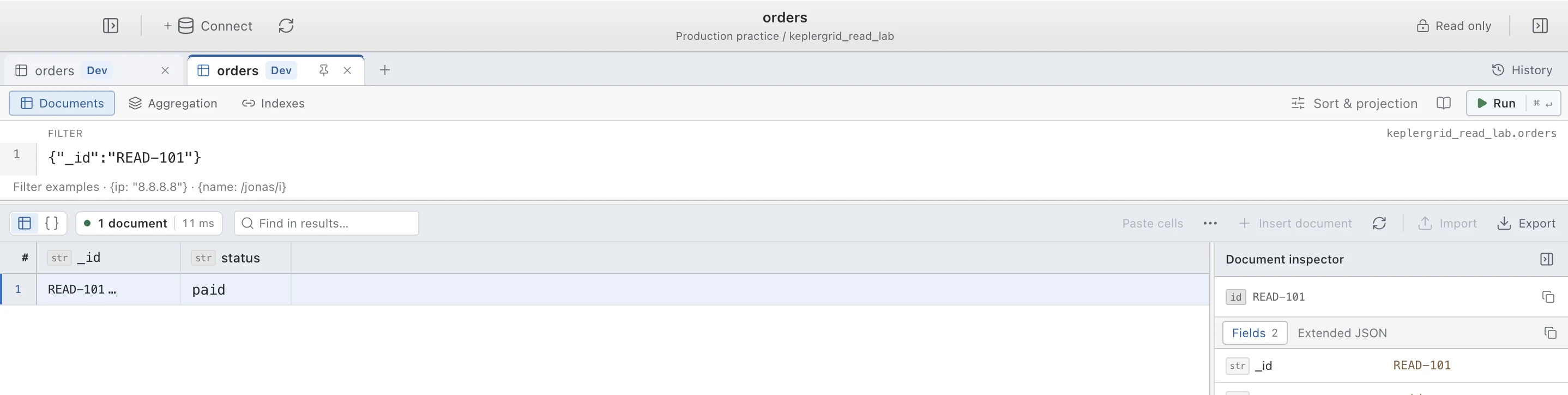
MongoDB enforces the account’s read role at the server. KeplerGrid’s setting also blocks writes through this connection. Keep both safeguards when browsing production. Run the deliberate write check below only on the disposable fixture.
Create the reader on a disposable server
Use a disposable, access-controlled MongoDB server on your own computer. In an administrator mongosh session, run the following once in an empty practice database. Enter a unique practice password at the prompt.
const lab = db.getSiblingDB("keplergrid_read_lab")
lab.orders.insertOne({ _id: "READ-101", status: "paid" })
lab.createUser({
  user: "report_reader",
  pwd: passwordPrompt(),
  roles: [{ role: "read", db: "keplergrid_read_lab" }]
})
Connect KeplerGrid as the reader
- In Connection details, enter the practice server address. Under Authentication, choose Username and password and enter
report_readerwith the password you set. - Set Authentication database to
keplergrid_read_lab. This is where you created the account. You can also set Default database to that name under Options to open it first. - Set Connection access to Read only. Click Test connection, then Connect. Open
ordersand run this filter in Documents.
{ "_id": "READ-101" }Expect one synthetic order with status: "paid". The MongoDB role is enforced by the server. The Read only setting blocks writes from this KeplerGrid connection.
Confirm MongoDB itself rejects a write
Open a separate mongosh session on the disposable server as report_reader, authenticating against keplergrid_read_lab. Run this deliberate write test against the practice collection. It should fail with a MongoDB authorization error.
db.getSiblingDB("keplergrid_read_lab").orders.insertOne({
  _id: "DENIED-TEST",
  status: "probe"
})
In KeplerGrid, filter by _id: "DENIED-TEST" and expect zero documents. If the test succeeds, inspect the account’s roles and confirm that the shell used the intended account before using it elsewhere.
See who can access a collection or check the authentication database when a login fails.
MongoDB client for Mac · MongoDB client for Linux and Ubuntu · MongoDB client for Windows